
Manage supported currencies
As part of the initial configuration of the Monetization module, Apigee configures available currencies and the default currency supported by your organization.
You can view the currencies that your organization supports, add supported currencies, or delete supported currencies through the Apigee UI, or through your Drupal developer portal.
To manage supported currencies and set the default currency for your organization in the Apigee UI, see Managing the organization profile using the UI.
To manage supported currencies from your Drupal Developer portal:
- Log in to your developer portal using Admin credentials.
- Go to Commerce > Configuration > Store > Currencies to view and manage your currencies, as shown in the figure below:
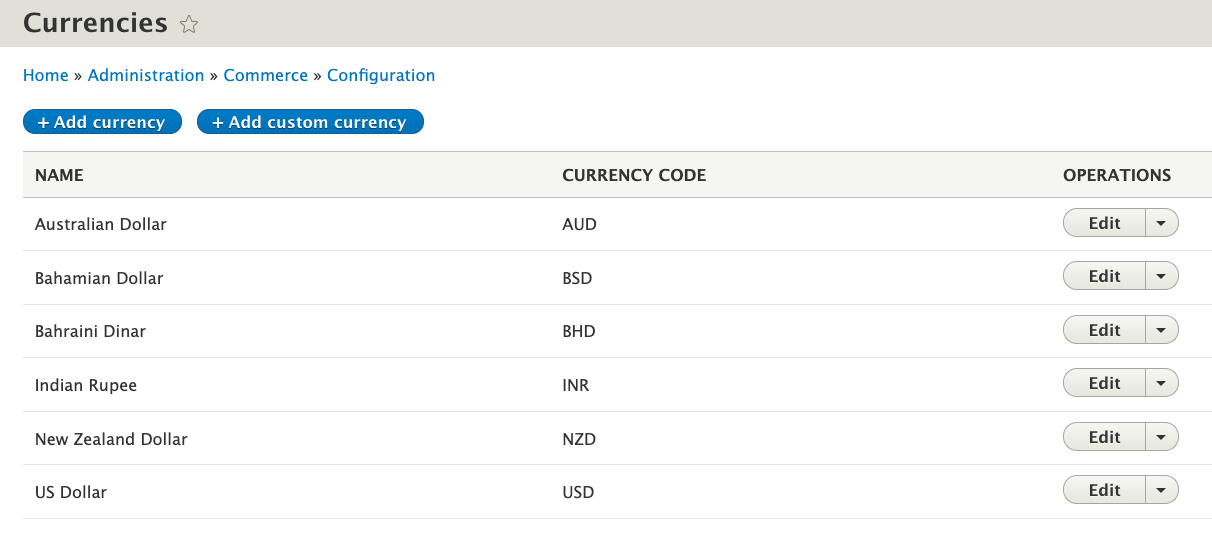
To add a new currency:
- Click + Add currency.
- Select an available currency from the scrolling list.
- Click Add.
To add a new currency that does not appear in list of available currencies:
- Click + Add custom currency.
- Fill out the required fields, as described in the table below:
Name The name of the currency. Currency Code The ISO 4217 alphabetic code for the currency. Numeric Code The ISO 4217 numeric code for the currency. Symbol The graphic symbol used to represent the currency. Fraction digits The number of digits permitted after the decimal sign. - Click Save.
Note: When you add a currency to an Apigee-X connected portal, the Add Credit button is enabled in the developer portal by default. For information on enabling the Add Credit button for Apigee-Edge connected portals, or enabling the Add Credit button without adding a currency, see Add an Add Credit button to your prepaid balance page.
To edit a currency:
- Click Edit in the OPERATIONS column for the currency you wish to update.
- From the dropdown list, select Edit to return to the currency details page.
- After editing, click Save.
To delete a currency:
- Click Edit in the OPERATIONS column for the currency you wish to delete.
- From the dropdown list, select Delete.
- On the confirmation page, click Delete.
Note: A currency that is in use by a developer or rate plan can not be deleted from the developer portal.
Help improve this page
You can:
- Log in, click Edit, and edit this page
- Log in, click Discuss, update the Page status value, and suggest an improvement
- Log in and create a Documentation issue with your suggestion
