
Circle as OAuth Client
Last updated on
15 October 2025
This document will walk you through the steps to configure Circle as an OAuth client and Drupal as an OAuth server. By using the miniOrange OAuth Server module, you can enable seamless Single Sign-On (SSO) between Circle and Drupal site, allowing users to log in to Circle using their Drupal credentials. This module is compatible with Drupal 7, Drupal 8, Drupal 9, Drupal 10, as well as Drupal 11.
Check out the Installation steps:
Setup Circle as OAuth Client:
- Go to the Circle admin console and login using your Circle credentials.
- Click on the Community dropdown and then select Settings.
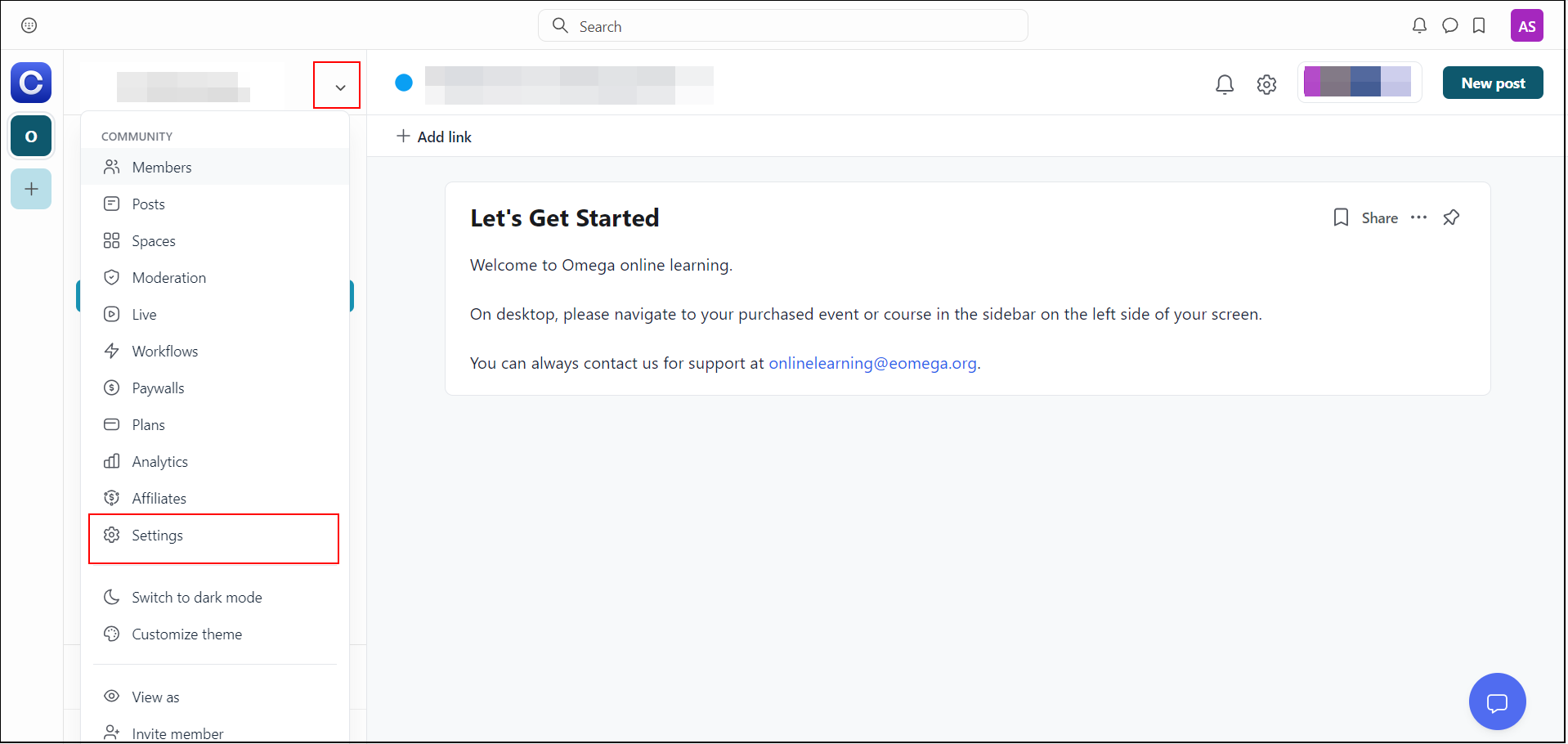
- Next, click on the Single sign-on from the left side panel.
- Under the Single Sign-On:
- Enable the Enable SSO toggle.
- Then, you can customize the Button label name for SSO.
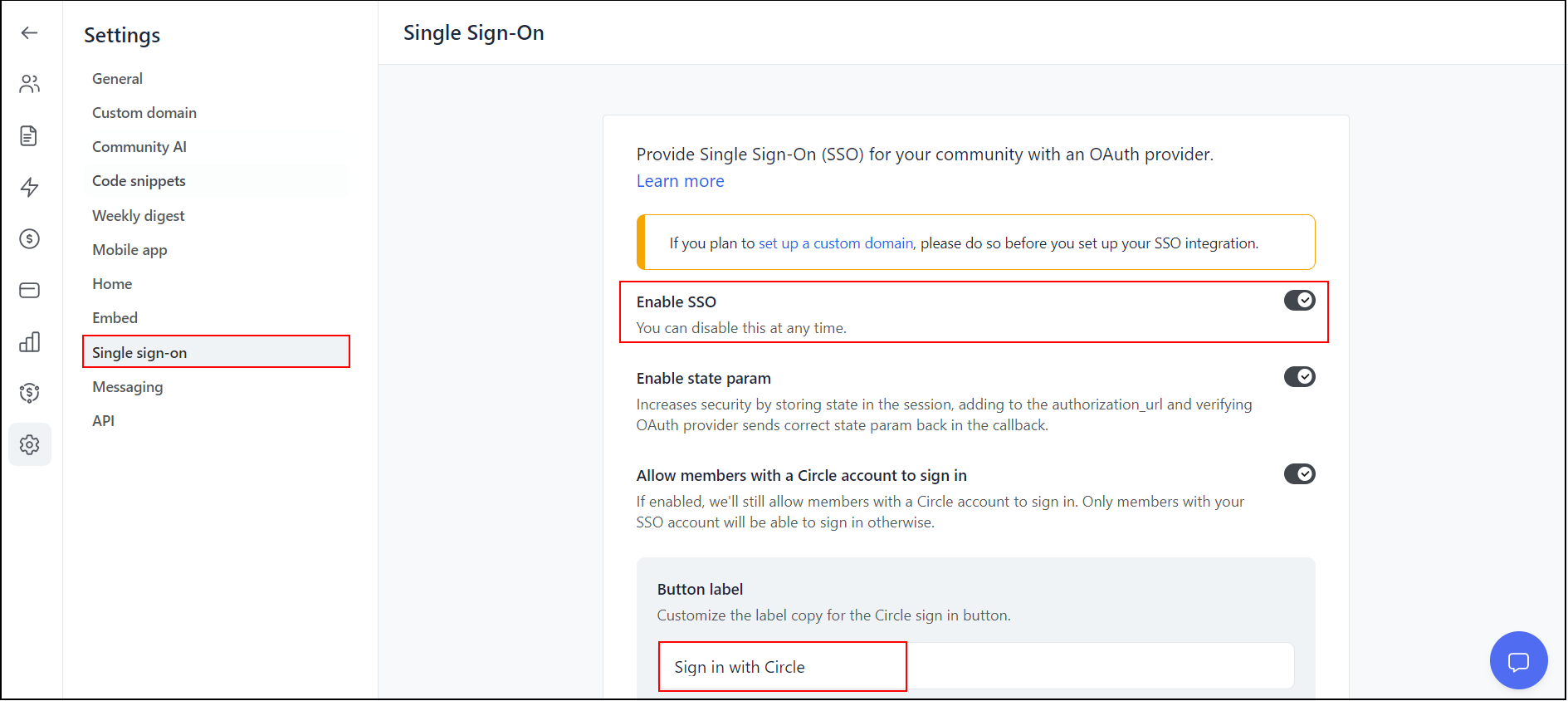
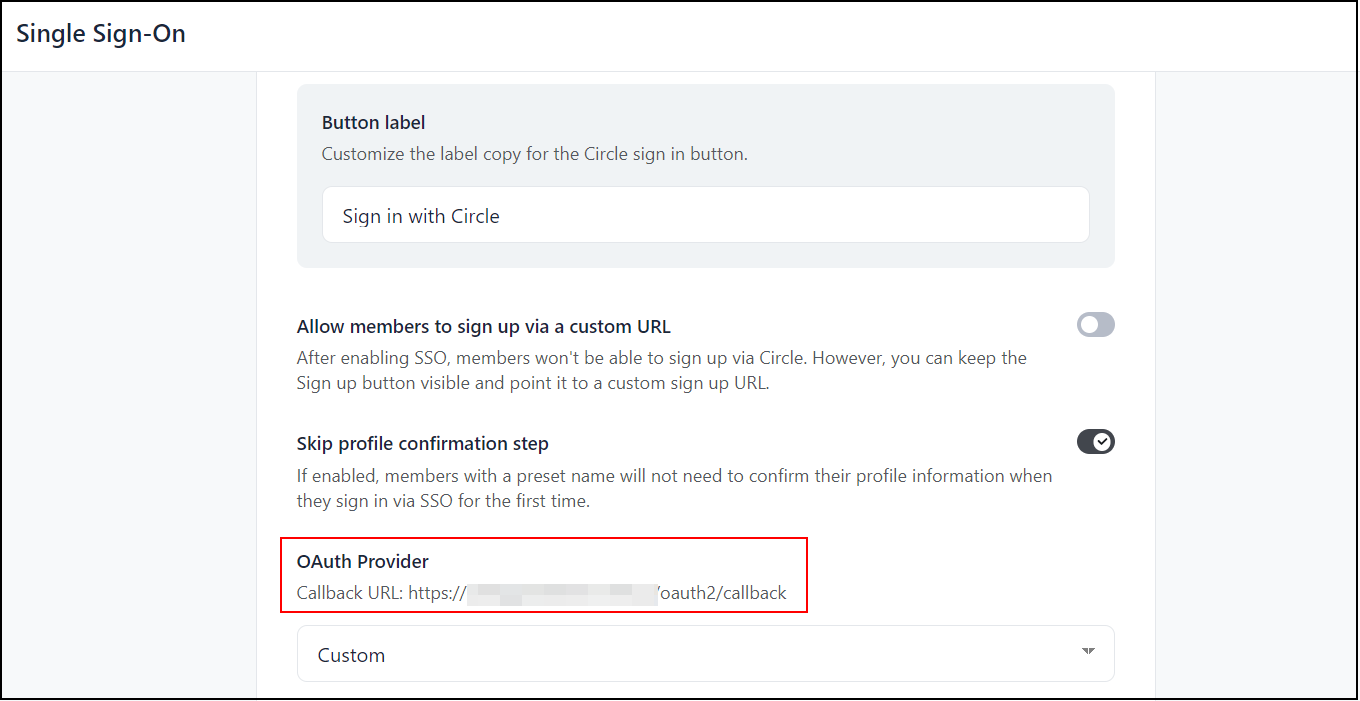
- Copy the Callback URL, you will need this for configuring Drupal as an OAuth server.
Setup Drupal as OAuth Server:
- Navigate to the Drupal site and go to the Configuration tab from the top navigation bar.
- Now, select the miniOrange OAuth server configuration.
- Click on the Add Client button.
- Enter the Application Name under the Application Name text field.
- Paste the copied Callback URL into the Callback/Redirect URL text field. You can add multiple Callback URLs by clicking on the Add More button next to the Callback/Redirect URL text field.
- Click on the Save button.
- Copy Client ID & Client Secret.
Configure Client ID & Secret:
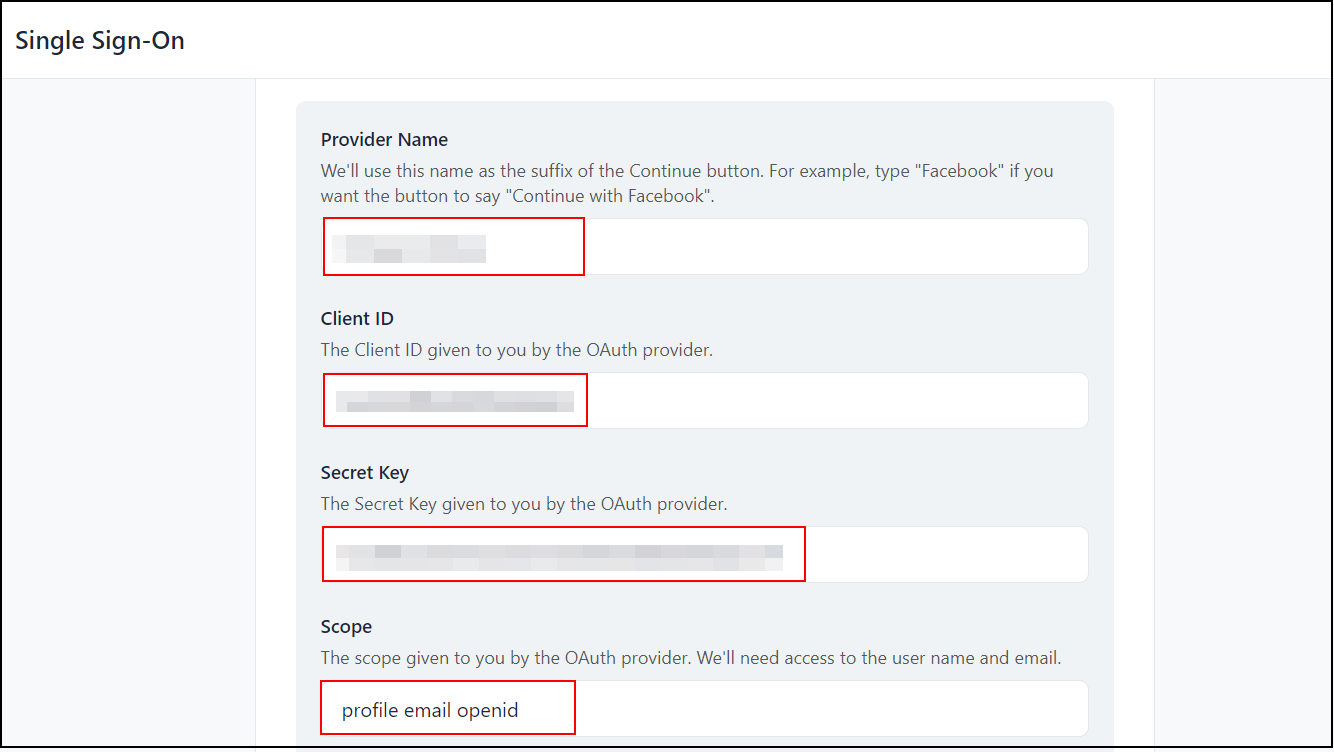
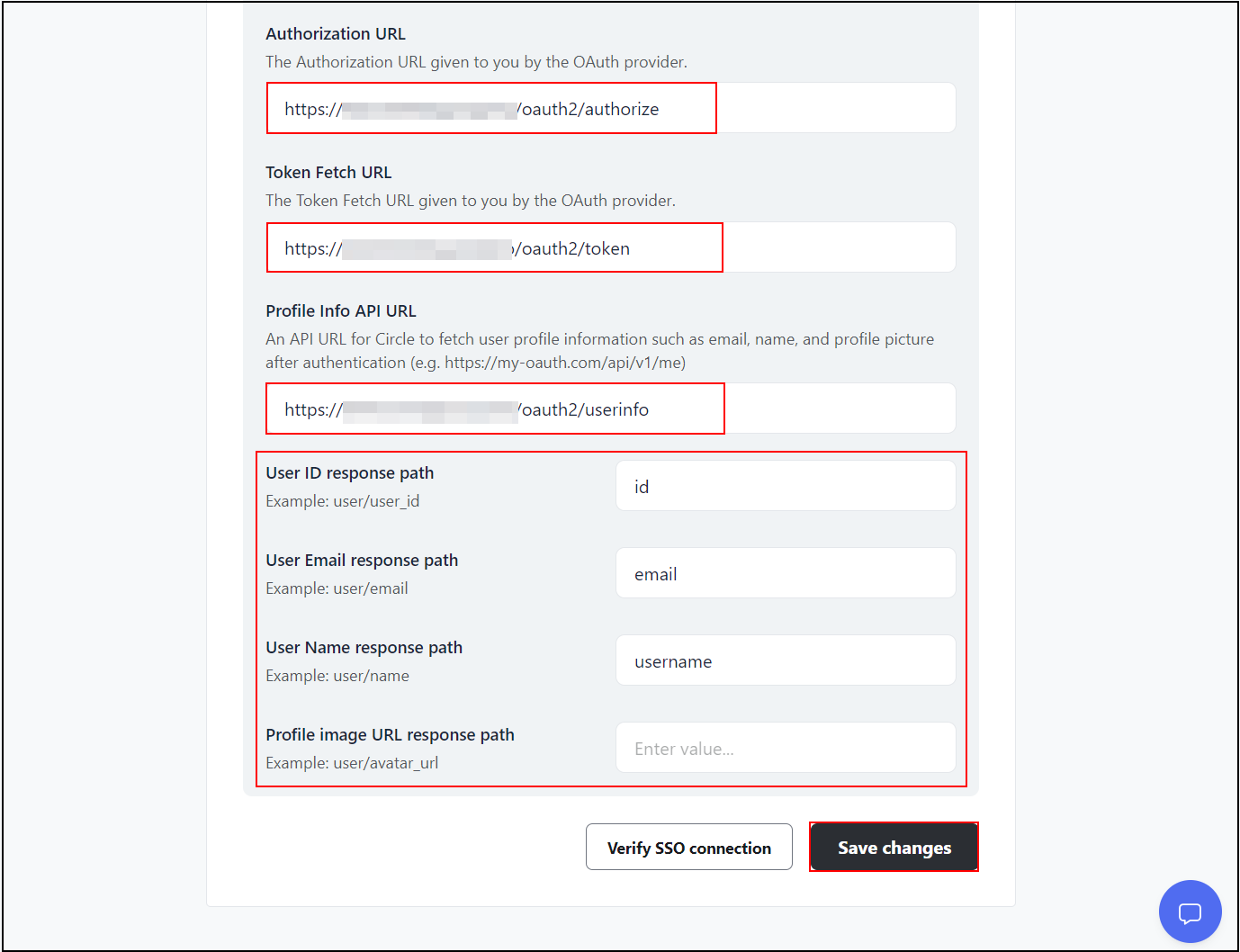
- Go back to the Circle SSO settings, enter the Provider Name, and paste the copied Client ID and Client Secret in the respective fields.
- Additionally, get the Scope, Authorize Endpoint, and Access Token Endpoint from Drupal, then enter them in the corresponding fields.
- You can Map your Attributes (Profile Mapping) under the Server Response tab of the Drupal OAuth Server module.
| Drupal Fields | Circle Fields |
| Scope | Scope |
| Authorization URL | Authorization URL |
| Access Token Endpoint | Token Fetch URL |
| Get User Info Endpoint | Profile Info API URL |
- Once done click on the Save Changes button.
Test Connection between Circle and Drupal:
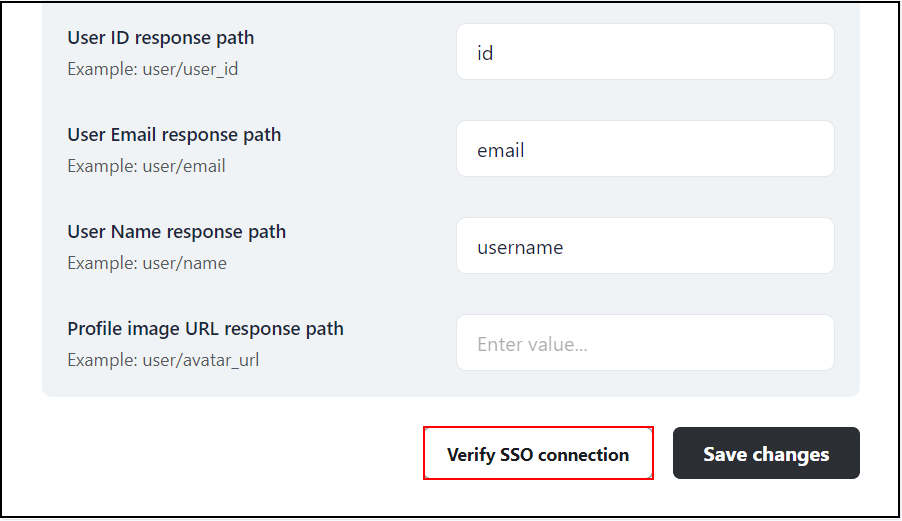
- After successfully saving configuration click on the Verify SSO connection button.
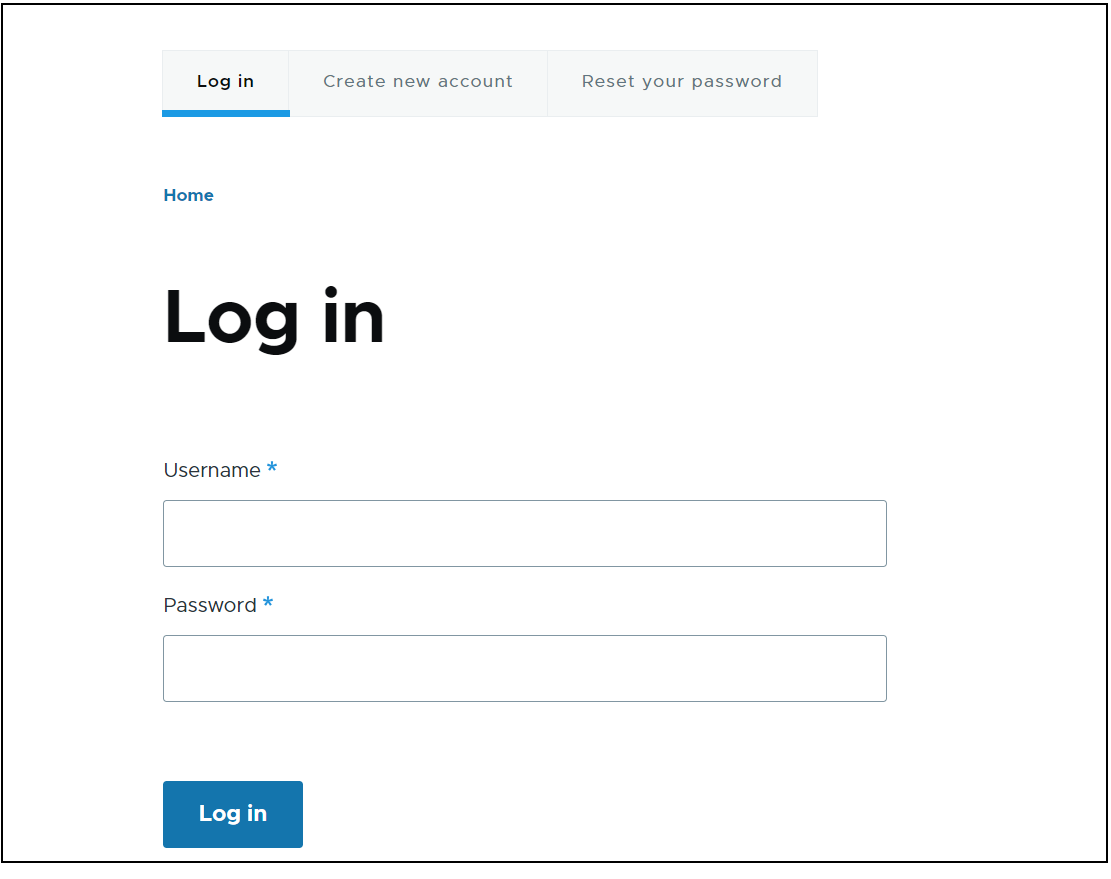
- You will be redirected to the Drupal user login page. Login with your Drupal credentials.
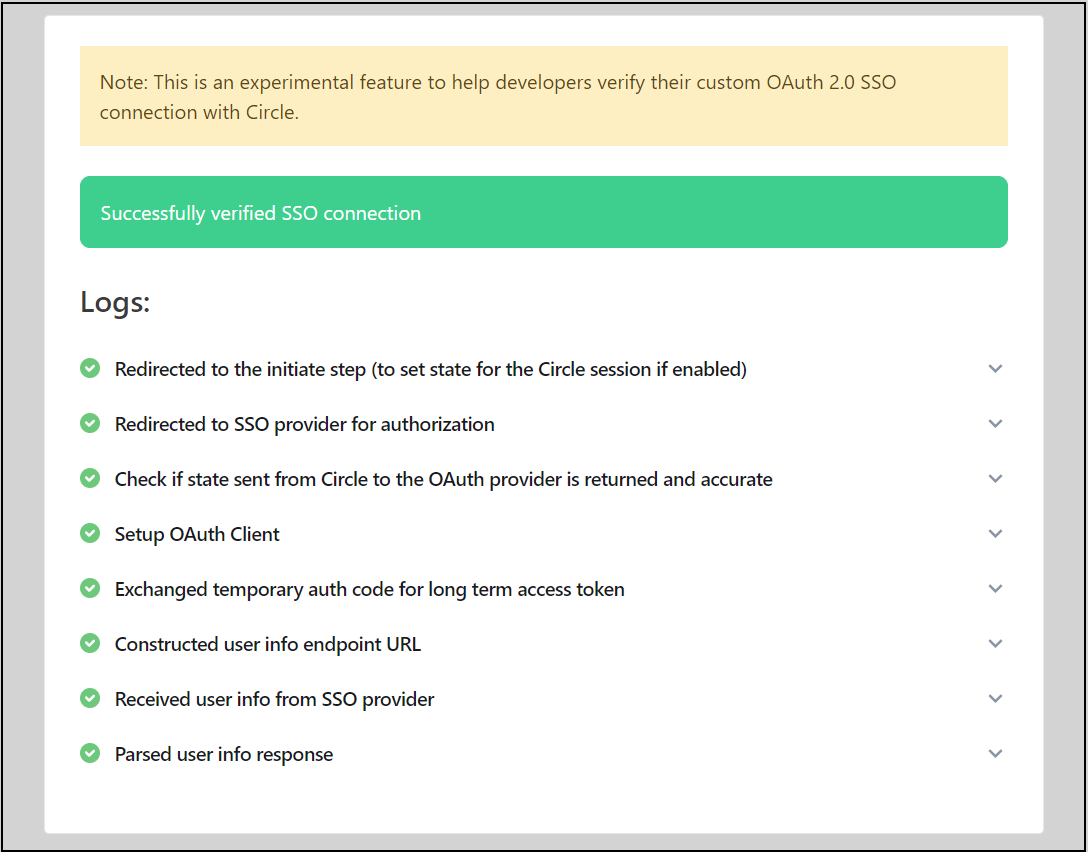
- After successful authentication from the Drupal site, you will be redirected Circle application. If configurations are correct the below success screen will appear.
Let’s see how it works:
- Open a new window/private browser and navigate to the login page of the Circle site. You will find the button to login with your Drupal credentials.
- Click on the Continue with Drupal link.
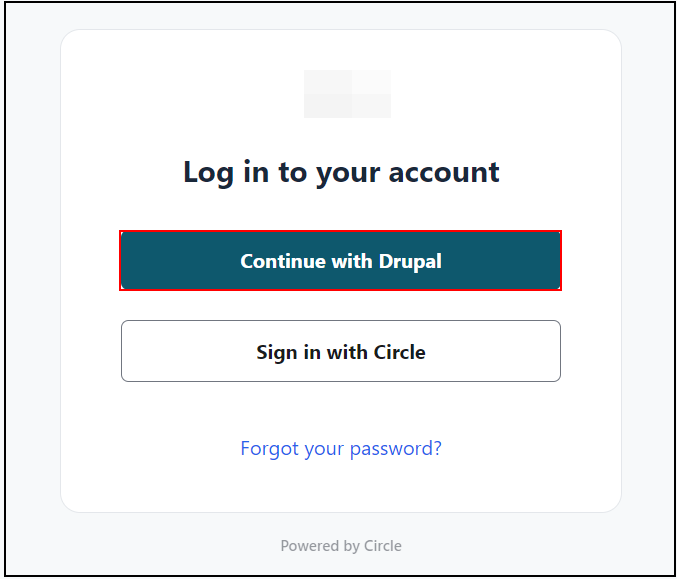
- You will be redirected to the Drupal user login page. Login with your Drupal credentials.
- You will be successfully logged into Circle using Drupal credentials.
 Back to top
Help improve this page
Page status: No known problems
You can:
You can:
- Log in, click Edit, and edit this page
- Log in, click Discuss, update the Page status value, and suggest an improvement
- Log in and create a Documentation issue with your suggestion
