
Smart Date and Views
This documentation needs review. See "Help improve this page" in the sidebar.
The Smart Date module exposes a variety date value formats for output, filters, or sorting in views, including:
- The full range (formatted)
- The start of the date/time range
- The end of the date/time range
- The duration (difference in minutes between the previous two)
An example of what this looks like in the Views interface:
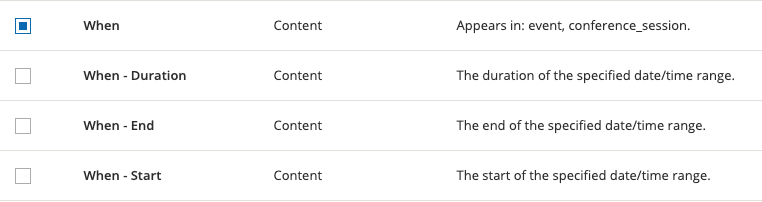
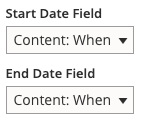
Unless you specifically need to output the start date and end date values separately—for example, if displaying values in a table or in a filter—use the first value listed, which will output the formatted range. Also note that using this field is required for both the start and end values when configuring the settings for a Fullcalendar View display as described in this issue. A screen capture of what this looks like in the display settings is below:
Also note that Smart Date saves expected values in both the start and end values even for zero duration ranges (the same time is stored for both) or for all-day events (the start is saved as 12 a.m. and the end as 11:59 p.m.). Because of this, filtering these types of events does not require additional handling processing. A filter with logic equivalent to "end value is greater than now" will work properly for all kinds of events.
When formatting the output of a Smart Date field, you have the option to use an existing Smart Date format, or use the custom formatter to set values specifically for your view.
Compatible modules
Fullcalendar
When using the Fullcalendar mosule for your calendar display, you need to define your Smart Date field as one of the view's fields. You can, however, exclude it from display to conserve processing. Note that Fullcalendar can display a mixture of content types and date fields. If you don't need this feature, then select your Smart Date field by enabling "Use a custom date field" in the "Customize fields" section of the Fullcalendar display settings, then select your Smart Date field(s).
Fullcalendar View
One note for using Smart Date with Fullcalendar View: If your field supports multiple values you will need to deselect "show multiple results in the same row" in the field display configuration to get them to display properly.
Calendar View
Smart Date and recurring date fields has been tested extensively with the Calendar View and reported to be fully working.
The only known limitation is for multi-value recurring fields. You must render the View results as fields and you must leave the "Show all results in the same row" unchecked.
Read this guide for further information and a complete step-by-step tutorial.
Adding a Date Picker Exposed Filter
You can use a date picker for an exposed filter by installing and enabling the Better Exposed Filters module.
Help improve this page
You can:
- Log in, click Edit, and edit this page
- Log in, click Discuss, update the Page status value, and suggest an improvement
- Log in and create a Documentation issue with your suggestion
